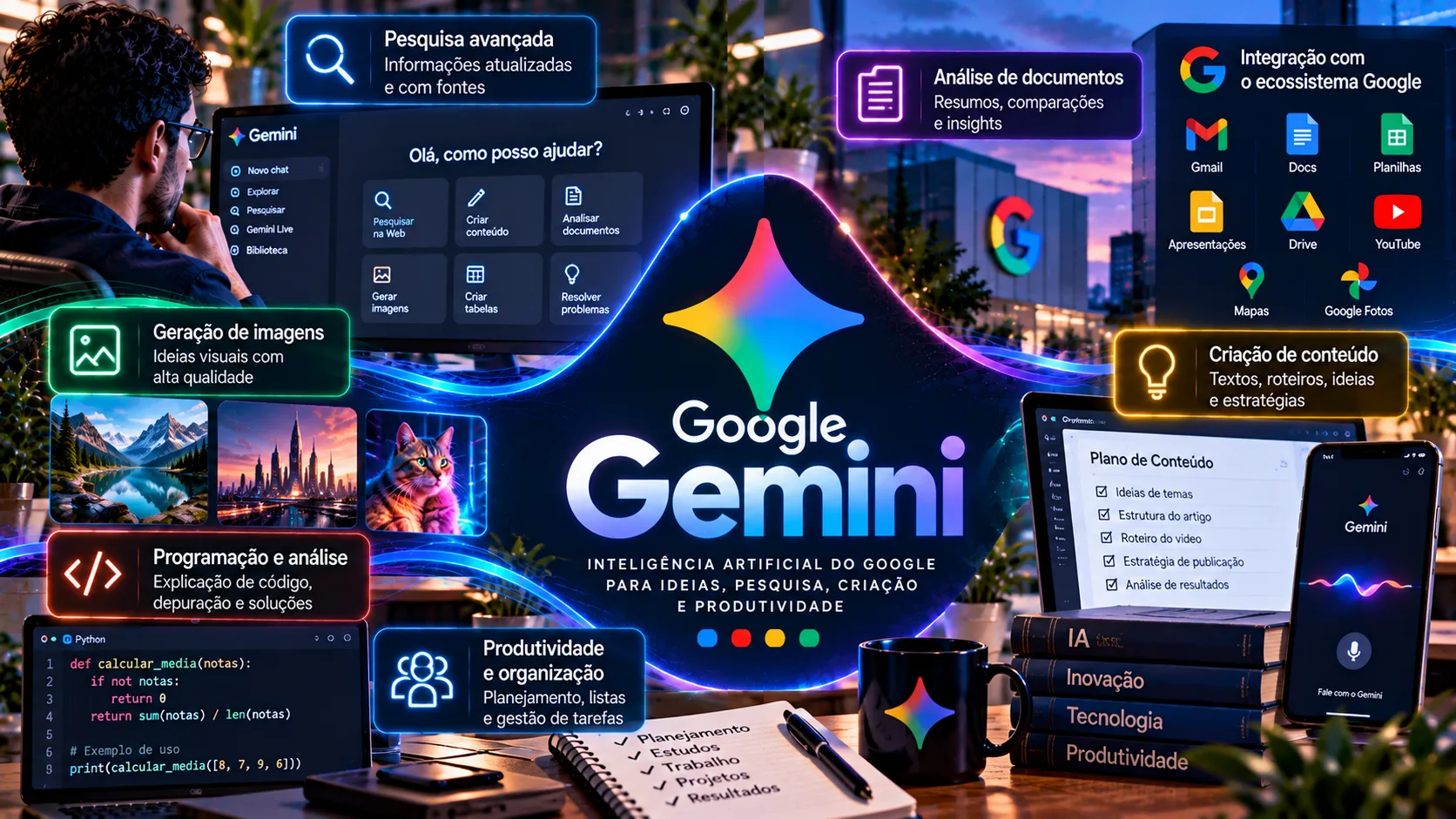
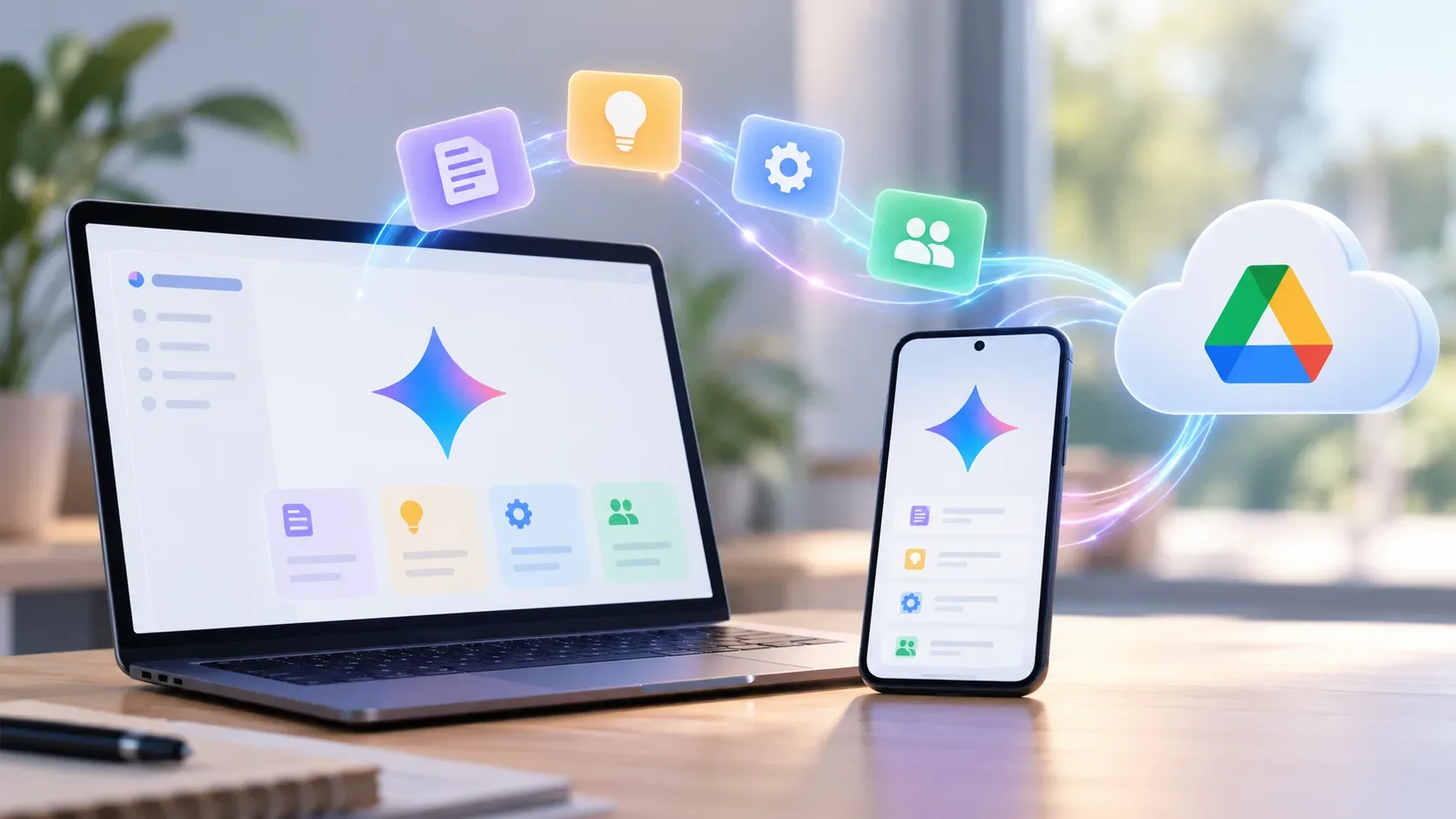
A Gem is a customized assistant in Gemini Apps. You can set its instructions and add reference files in a web browser, chat with it in the Gemini mobile app, and, with an eligible plan, use it directly in Google Drive on the web. These are three different experiences. The Gemini mobile app is not the Gem editor, and the mobile Drive app does not offer the same documented Gems integration as Drive on the web.
This guide is based on documentation checked on October 24, 2026; DTech did not create an account or conduct a hands-on test. An important change has already been announced: Google will start migrating Gems belonging to adult personal-account holders to Skills on November 17, 2026. The paths below describe Gems before that transition, not menus guaranteed to remain unchanged.
What you actually create with a Gem
A Gem combines a name with persistent instructions about its task, audience, tone, output format, and boundaries. You can attach files under Knowledge to give responses more context. Google also offers premade Gems. This customizes assistant behavior in chats; it does not train a new AI model, build an autonomous application, or automatically grant unrestricted access to everything in Google Drive.
For example, a Gem designed to review reports could use this instruction: "Read the supplied material, separate facts from hypotheses, highlight figures with their units, and list questions that need verification. Do not invent sources." This is a configuration example, not the outcome of a product test.
How to create a Gem in a browser
- Sign in with a Google Account at gemini.google.com.
- Open the sidebar, select Gems, and choose New Gem, as described in the desktop instructions.
- Give it a task-focused name and write instructions explaining the goal, expected format, and restrictions.
- Add files under Knowledge if useful. Local files and Google Drive files have different prerequisites.
- Use the preview to inspect responses and improve the instructions; then save.
- Open it under My Gems and submit a request. Revise any instructions that lead to vague or unverifiable answers.
In a phone browser, Google also documents a path through the gemini.google.com menu to Settings and help > Gems > New Gem. That is not the same as creating a Gem inside the installed Gemini app. Button names and placement may change during the transition to Skills.
What works in each interface
| Task | Gemini in a browser | Gemini mobile app | Drive on the web | Drive mobile app |
|---|---|---|---|---|
| Create or edit a custom Gem | Yes, on the Gemini website | No; use the browser | Not the editor; open the Gemini website | Not a documented editor |
| Chat with a Gem | Yes | Yes | Yes, if the account and plan qualify | Gems integration not documented |
| Add a Drive file to Gem knowledge | Yes, with Activity enabled and Workspace connected | Use the Gemini website | Not a substitute for Gem setup | Not the documented path |
| Use a Gem with Gemini Live | No, a stated product limitation | No | Not applicable | Not applicable |
How to read this table: each column represents the product’s main interface. You can also open gemini.google.com in a phone browser. The Drive app may offer other Gemini features, but that does not establish a Gems picker in the Drive mobile app.
Google Drive supports two distinct Gem workflows
1. Add a Drive document as knowledge. While editing a Gem at gemini.google.com, go to Knowledge > Add files > Add from Drive. According to Google’s help pages, Gemini Apps Activity must be enabled and Google Workspace must be connected to Gemini Apps. Google says the Gem then uses the latest version of the linked file. This is not a blanket permission to access the entire Drive library.
2. Chat with a Gem inside Google Drive. At drive.google.com, an eligible user chooses Ask Gemini, opens the menu in the full-screen experience, selects Gems, picks a premade or custom Gem, and enters a request. The specific Drive help page states that Gems in Drive are available only in Drive on the web and require an eligible Google Workspace plan or a Google AI plan. The interface is different from older instructions that only showed a side panel.
Storing files in Drive, linking a file to a Gem, and opening a Gem inside Drive are therefore separate tasks with separate requirements. Having a free Google Account alone does not establish access to the plan-gated feature inside Drive.
Plans, Portuguese support, and availability in Brazil
Google lists Brazil among the places where the Gemini web app is available and includes Portuguese among its languages. The Workspace documentation also lists Portuguese as a supported language for Gems displayed in the Drive panel. This documents language and geographic support, but does not guarantee that every Brazilian account will display the feature.
For personal accounts, Gemini’s Gems help page requires sign-in and the applicable minimum age to create and use Gems; that page does not set out the same AI-plan subscription requirement that applies to Gemini inside Drive. For AI features in Workspace apps, Google lists personal Google AI Plus, Google AI Pro, and Google AI Ultra plans, as well as eligible organizational Workspace plans. Individual features depend on the plan, account, language, and administrator settings. No price in Brazilian reais or blanket entitlement for every paid tier is implied here.
If Gems or Ask Gemini is missing, first check that you are in the right product (gemini.google.com versus drive.google.com), your account type, age eligibility, Workspace connection, and plan. Workplace and school administrators may restrict access as well.
The transition to Skills starting in November 2026
Google has announced a phased replacement of Gems with Skills, reusable instructions for Gemini tasks. For personal account holders aged 18 or older, its documentation schedules November 17, 2026 as the date Gems will be converted to Skills and become read-only. After that, users cannot use, create, or edit them as Gems. On December 17, 2026, Gems will no longer be accessible in Gemini Apps. The automatic migration includes supported files, but size and file-type limits apply, so important attachments should be reviewed.
Google says the transition for personal users under 18 will happen later, without a detailed date yet. For organizations, the announced windows are March 2027 for business, enterprise, and nonprofit Workspace accounts and June 2027 for Workspace Education. Future Skills should not be treated as identical to Gems: Google documents temporary differences in compatible tools and sources.
Checklist before building your assistant
- Choose a repeatable task and write specific answer criteria rather than assuming the Gem already knows your workflow.
- Decide whether you need a specific file as knowledge or a conversation opened inside Drive; the prerequisites are different.
- Review permissions and confidentiality before attaching documents. Do not assume the model will always read correctly or that human verification is unnecessary.
- Identify your Google Account type and plan; if it is managed by an organization, confirm permissions with the administrator.
- If you maintain personal Gems, account for the announced November transition and check which files will migrate to Skills.
These steps describe the provider’s documentation, not an account submission or product execution conducted by DTech. Because transition dates have already been announced, menu availability should be checked again when following the guide.